Grandstream (7)
High-Performance Wireless Solutions for Businesses - Grandstream Networks
Whether you need entry-level Wi-Fi for a small application or wide area, outdoor coverage for a large venue, GNS Wireless carries an extensive portfolio of commercial grade wireless access points. We carry wireless access point equipment that will provide the type of performance you request. We carry indoor Wi-Fi 6 routers, and 802.11AX wireless access points to meet the exact needs of your particular application.
Ensure secure and reliable connectivity for your network with wireless access points from GNS Wireless. We stock access points from leading manufacturers that provide high-quality, fast connections for your wireless devices, ensuring optimal performance and signal strength. Browse our selection of Wi-Fi access points below.
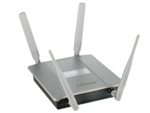
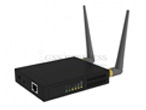
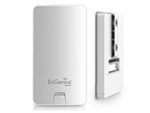
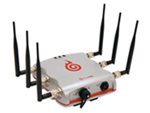

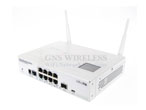
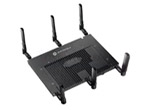
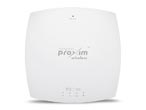
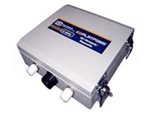
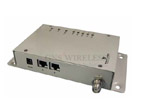
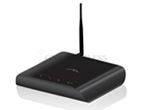
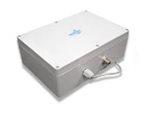
What type of Wireless Access Point & Antenna combination should I choose?
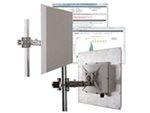
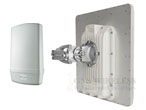
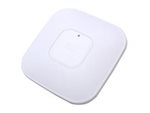
Adding a GNS Wireless High Power Wireless-N, AC or the new AX Access Point to your outdoor antenna adds extreme range, and also high speed network access for existing wired networks. Combine a high power (500mW or more) amplifier and a high gain directional antenna, and your wireless network is capable of providing up to 1.5 miles or more of point to point wireless extender. The Network Access Point you choose to work with a high gain antenna should be one that meets the needs of the particular application. Are you looking to cover a campground with high speed, and long range Wi-Fi, or are you trying to get better coverage in a large backyard, so you and family members are always connected? For extending coverage into the backyard, check out some of the outdoor access points that have integrated antennas built into the outdoor enclosure. For campground coverage, it would be best to contact GNS Wireless, and one of our technicians will go over the wireless access point equipment to suite your particular needs.
RocketM2 is a great basic use, outdoor network access point, and has dual RPSMA-Female connectors for adding a wide range of high gain antennas, or use it for building to building applications.
For more commercial and industrial use, the Cisco 3700 Series, IW3700, provides 802.11AC rates of up to 1.3 Gbps, mesh networking, removable antennas, and pervasive coverage in a small, compact outdoor enclosure. It is qualified for extreme industrial conditions, and ideal suited for manufacturing, transportation, or any other outdoor WiFi application.
Wireless access points are an essential component of any wireless network. They provide a secure and reliable connection point for your wireless devices, ensuring optimal performance and signal strength.
At GNS Wireless, we offer a wide range of wireless access points to meet your specific needs. Our access points are designed to provide high-quality, fast connections for your wireless devices, ensuring that your network is always performing at its best.
Our access points are also designed for easy installation and use, making them a versatile choice for your network. Whether you need access points for indoor or outdoor applications, we have the right solution for you.
In addition to their reliability and performance, our wireless access points also offer advanced security features to help keep your network secure. This includes support for the latest encryption protocols and other security features to help protect your data.
So if you're looking for secure and reliable connectivity for your network, look no further than GNS Wireless. Browse our selection of wireless access points now at gnswireless.com and ensure that your network is performing at its best.