
How (and Why) to Disable STP and BPDU on MikroTik nRAY60 Wireless Links
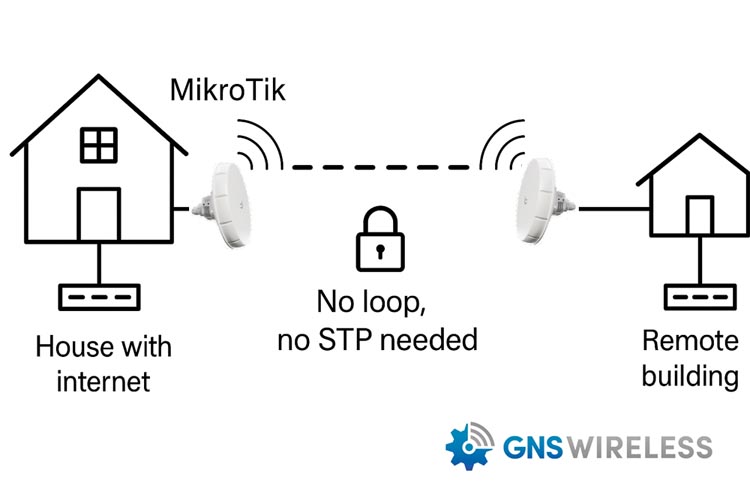
The MikroTik nRAY60 is a high-speed 60GHz wireless bridge, perfect for point-to-point (PTP) links across short distances. Whether you’re connecting a barn to a house, a shop to a main building, or extending service from a home to an office, the nRAY60 provides gigabit-level performance with clean line of sight.
But there’s a small detail that can make or break your install: STP and BPDU traffic.
In this post, we’ll explain why you should disable STP (Spanning Tree Protocol) and BPDU (Bridge Protocol Data Units) in PTP setups — and how to do it the right way.
🚫 What Is STP, and Why It’s Not Needed in PTP?
Spanning Tree Protocol (STP) is designed to detect and eliminate Ethernet loops in redundant networks. It prevents broadcast storms by calculating the most efficient path between switches.
However, in a simple point-to-point wireless bridge, like a pair of nRAY60s:
-
There’s no loop.
-
There’s no redundant path.
-
Therefore, there’s no reason for STP to be enabled.
🔄 Side Effects of Leaving STP Enabled:
-
Long boot delays (15–30 seconds) before interfaces forward traffic
-
Unexpected port blocking from managed switches detecting unknown BPDUs
-
Unnecessary STP negotiation, adding latency and complexity
✅ Benefits of Disabling STP/BPDU in PTP Links
| Advantage | Why It Matters |
|---|---|
| ⚡ Faster link initialization | No STP delay — traffic flows immediately |
| 🔒 Prevent switch port blocking | Avoid false loop detection on managed switches |
| 🚀 Improved reliability | Less protocol overhead = more stable bridge |
| 🛠️ Easier troubleshooting | Simplifies link behavior and startup consistency |
🛠️ How to Disable STP and BPDU on MikroTik nRAY60
Step 1: Disable STP on the Bridge
STP is controlled by the bridge interface.
In Winbox or WebFig:
-
Go to Bridge > Bridge
-
Double-click
bridge1(or your bridge name) -
Set Protocol Mode to
none -
Click Apply
Or via CLI:
/interface bridge set bridge1 protocol-mode=none
Step 2: Mark Ether1 as an Edge Port
Marking the Ethernet port as an Edge Port tells STP (if enabled) that it’s connected to an endpoint — skipping the usual blocking/listening stages.
In Winbox/WebFig:
-
Go to Bridge > Ports
-
Double-click
ether1 -
Check the Edge box
-
Apply changes
CLI:
/interface bridge port set [find interface=ether1] edge=yes
✅ This setting is optional if STP is disabled, but it’s good practice on endpoint ports.
Step 3: Understand Wireless Interface Behavior
The 60GHz interface (e.g., wlan60-1) does not forward BPDUs and does not participate in STP.
No changes are needed for the wireless interface — the optimization applies to Ether1 and bridge configuration only.
⚠️ Is There Any Risk in Disabling STP?
Only if your setup includes:
-
Multiple switches
-
Redundant Ethernet links
-
Or bridging on both ends of the PTP link
In these cases, STP should remain enabled to protect against switching loops.
But if your PTP setup is:
-
One link
-
No loops
-
One uplink per end
Then disabling STP is not only safe — it’s recommended.
MikroTik BPDU filter, disable spanning tree protocol MikroTik, STP edge port MikroTik, optimize wireless bridge performance, point-to-point wireless configuration MikroTik
🧰 Need Help Configuring Your MikroTik nRAY60?
At GNS Wireless, we pre-configure your wireless bridge systems to ensure optimal performance right out of the box — including STP, VLAN tagging, IP addressing, and more.
Let us help with your next install.
📞 Call now: 877-209-5152
🌐 Visit: www.gnswireless.com
📝 Free Site Survey & Custom Quote